Homepage Setup
After installing the theme, you get a simple website with a blog main page. If you have previously installed the “UK Portfolio” plugin, the portfolio section will also be available at sitename.com/portfolio.
You can easily change the view of your home page: just go to “Dashboard > Appearance > Editor > Templates > Blog Home” and on the editor page, in the right column, select template for your home page.
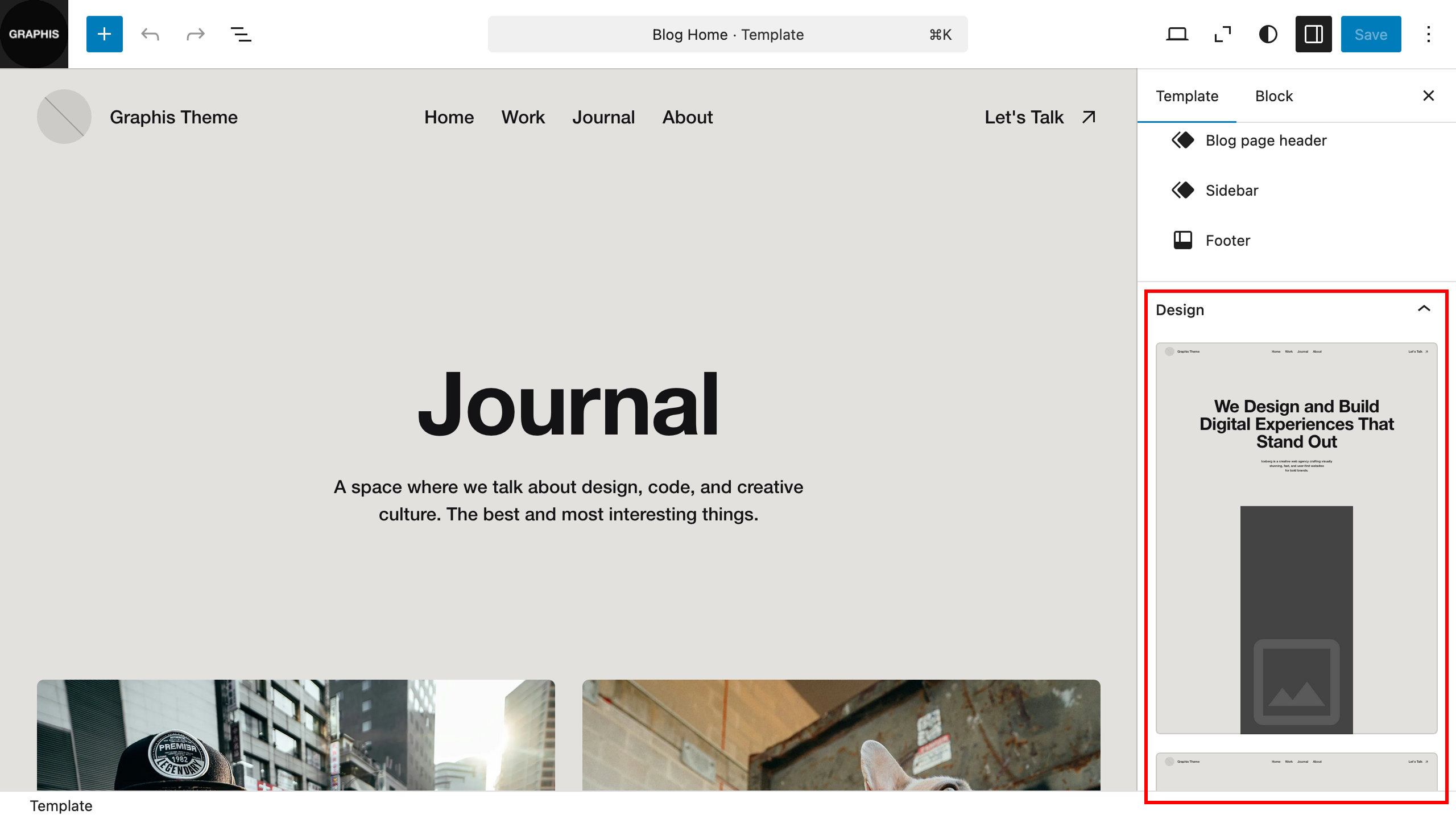
If you need a separate blog section on your site, you will need to set up content display for the main page and the blog page. To do this, create two new pages: “Home” and “Blog” (if you imported the demo content, you already have these pages created).
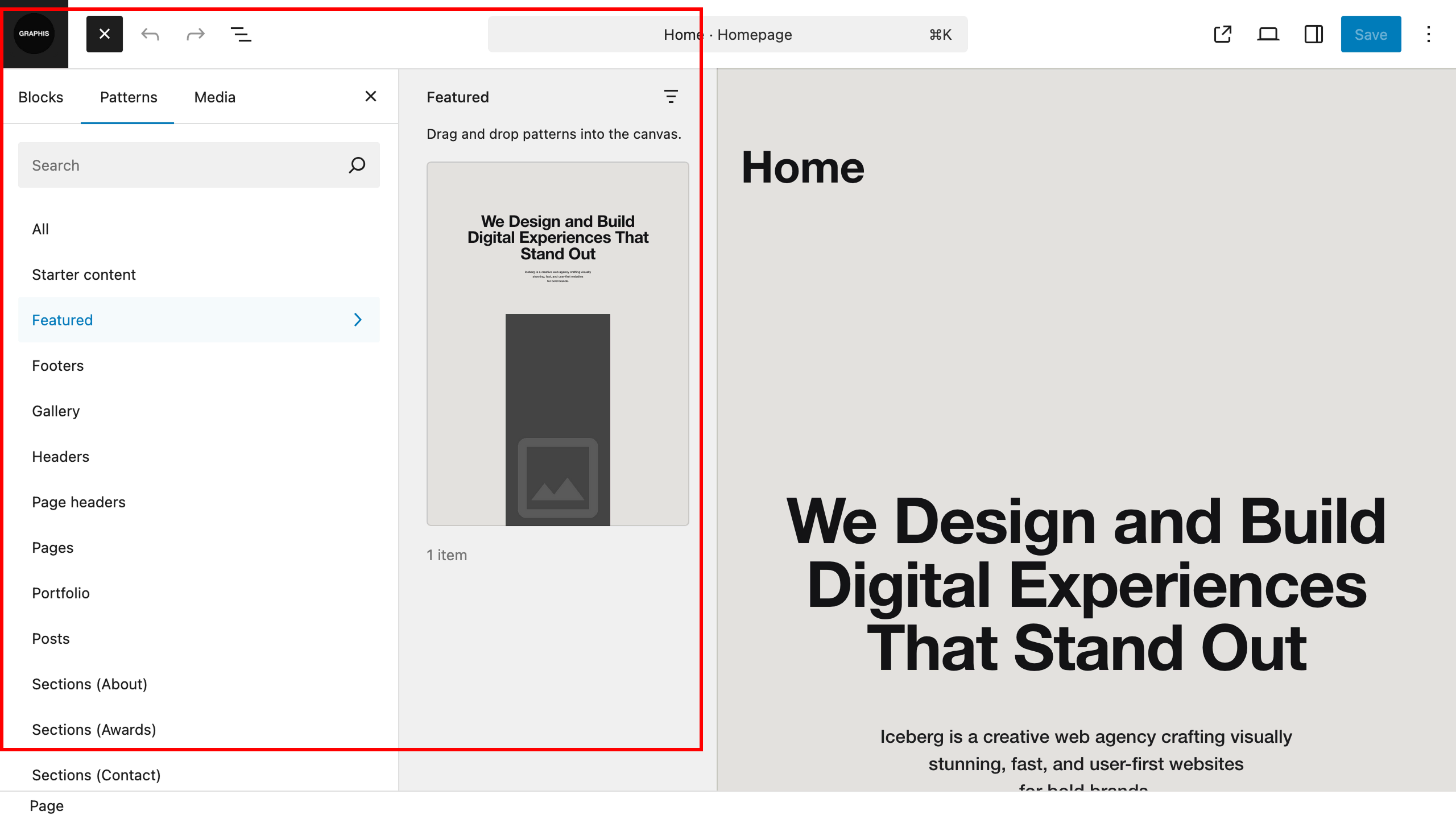
When creating the “Home” page, insert one of the patterns for the home page into it. To do this, click the plus button in the upper left corner of the site, select the “Patterns” tab, and then the “Featured” item. From the list of patterns that opens, select one for the main page.
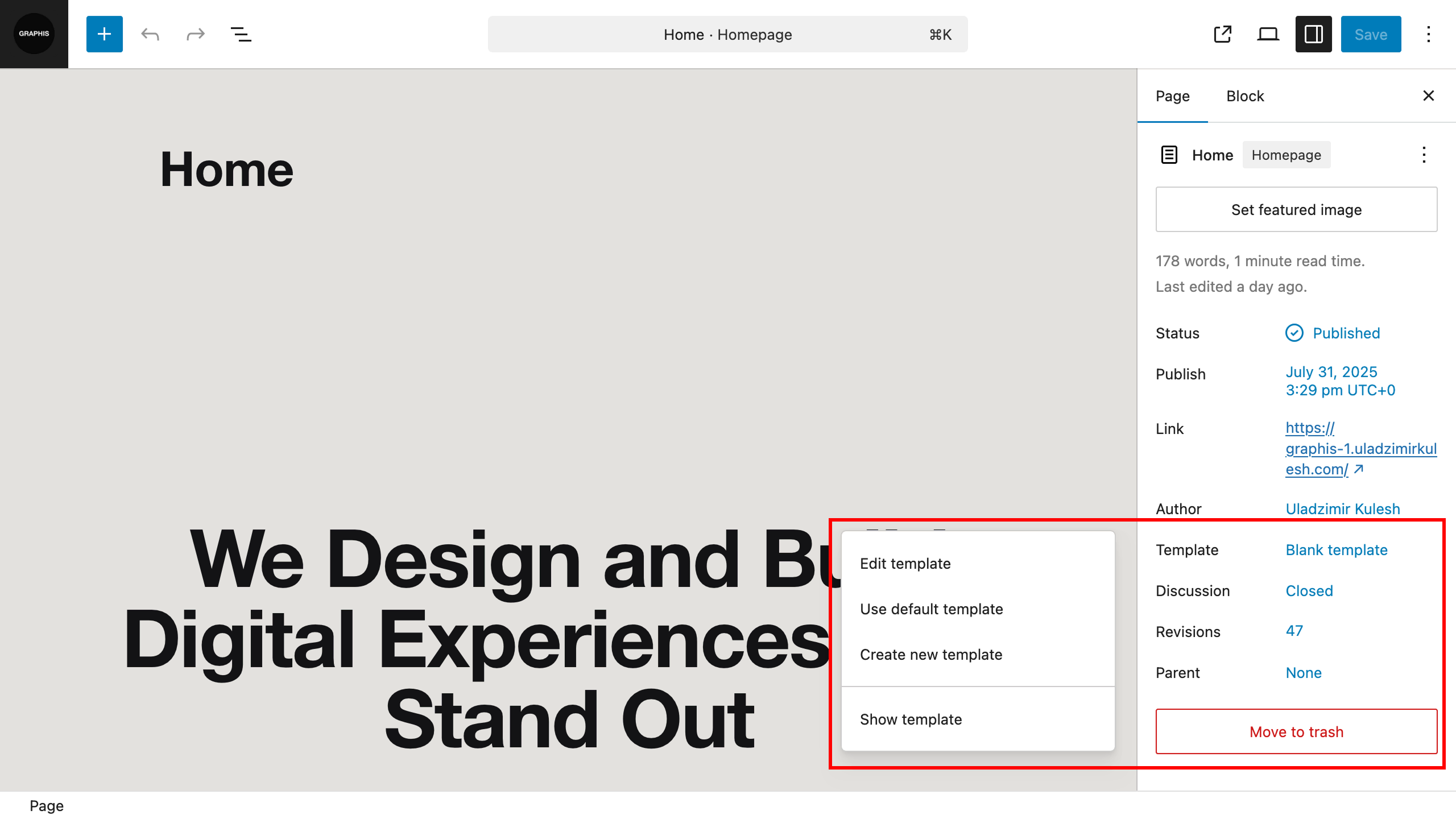
In the right column of settings, select “Blank template” as the template for this page and click “Save” button.
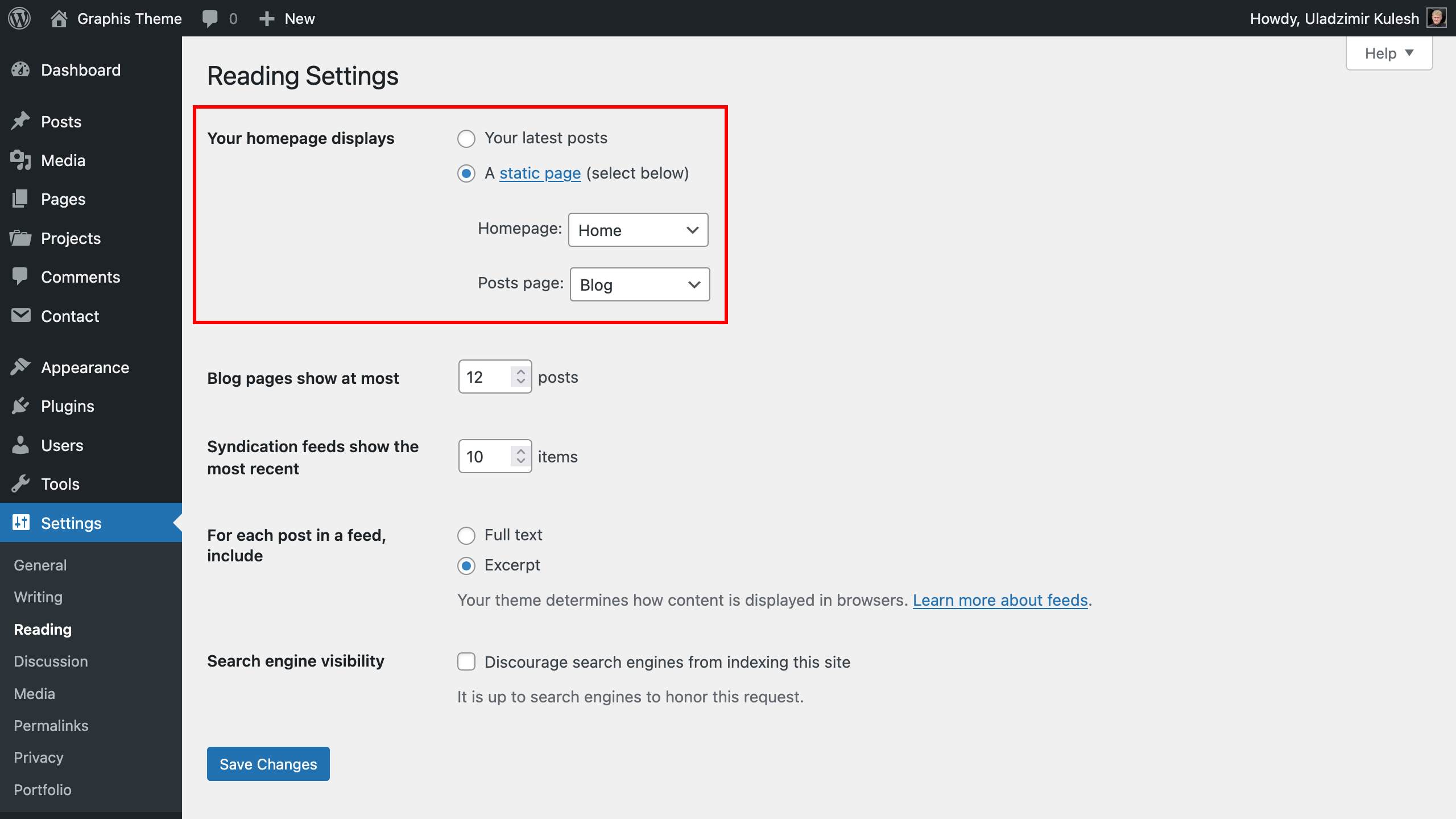
After you have added pages (if you imported demo content you already have them), go to “Dashboard > Settings > Reading” and for “Your homepage displays” select a “A static page (select below)” setting, for “Homepage” setting select “Home” page and for “Posts page” setting select “Blog” page. Click “Save Changes” button.