Supported Plugins
When you first install a theme, you will see a pop-up window in your dashboard asking you to install a number of plugins. Decide which ones you need and allow the theme to install them for you. Theme supports the following plugins:
1. UK Portfolio
“UK Portfolio” is a WordPress plugin that adds a custom post type “Project”. By having custom post types in a separate plugin, your content remains intact across different themes. It also registers separate project taxonomies for tags and categories.
After activating the plugin, in the site’s admin panel you will see the “Projects” section, where you can add your projects and set up categories with tags for them.
A list of your projects will be available on yoursite.com/portfolio.
The plugin has several settings:
- You can select the number of projects for your portfolio page.
- You can choose whether to display comments on the project page or not.
To set up this go to “Dashboard > Settings > Portfolio” and change options.
If you try to view the portfolio and get a 404 error, you should update the permalinks. Go to “Dashboard > Settings > Permalinks” and click button “Save Changes”.
To change the appearance of the project list page in the portfolio, go to “Dashboard > Appearance > Editor > Templates > Portfolio” and in the right section select a design for your portfolio page.
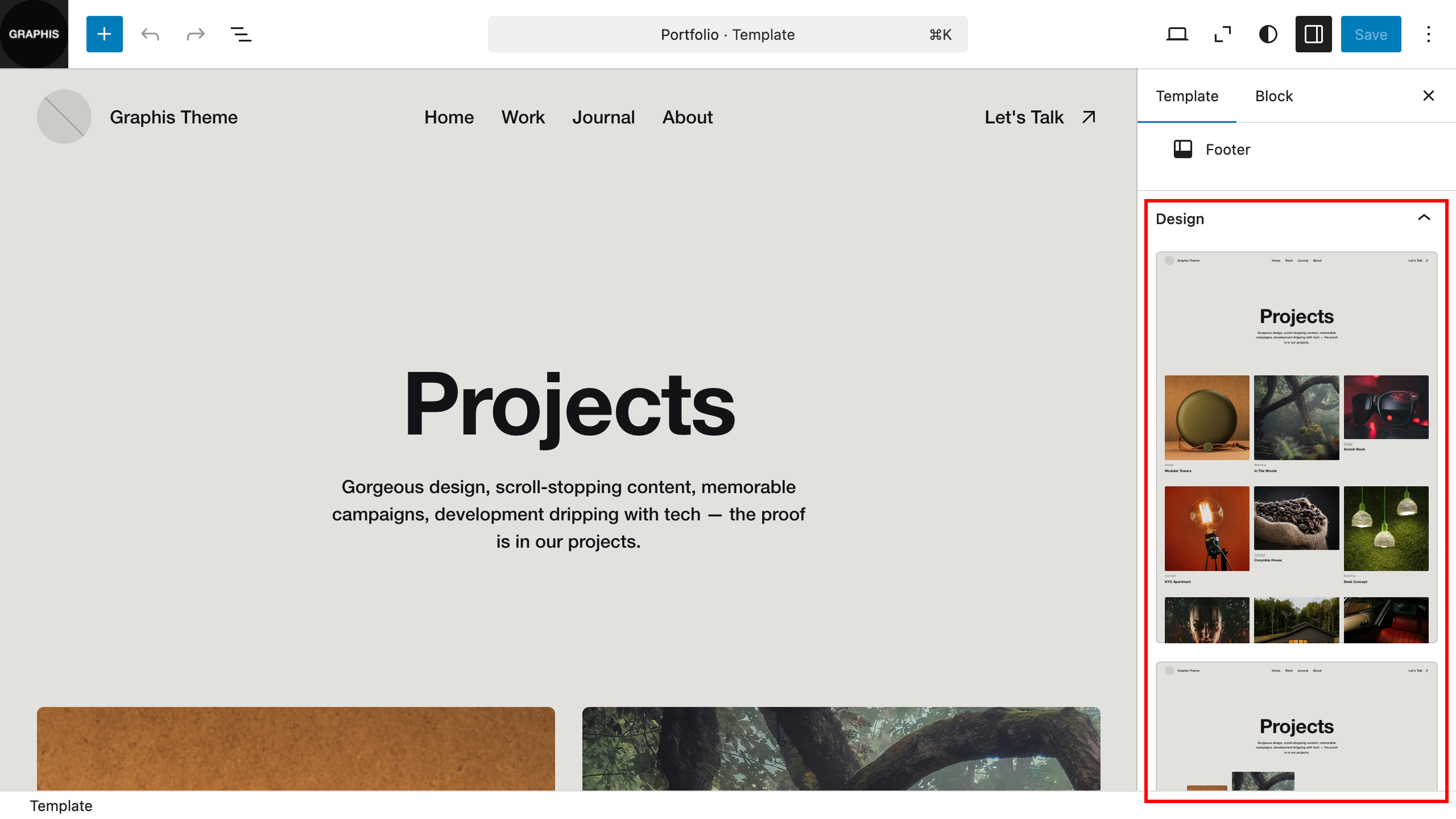
The same needs to be done for pages “Portfolio category archive” and “Portfolio tag archive”.
2. Contact Form 7
“Contact Form 7” can manage multiple contact forms, plus you can flexibly customize the form and email content with simple markup.
Plugin configuring
If you imported the demo content, the plugin will already be configured and the contact form will be placed on the contact page.
If you are customizing the theme yourself, you will need to create a contact form and place it on the contact page. After installing the plugin, go to “Contact > Add new” (or edit current one) and in the form field insert what is indicated below:
Copy your contact form shortcode. Them go to “Pages > Add New”, add title for page, add contact page pattern and insert shortcode to this pattern.
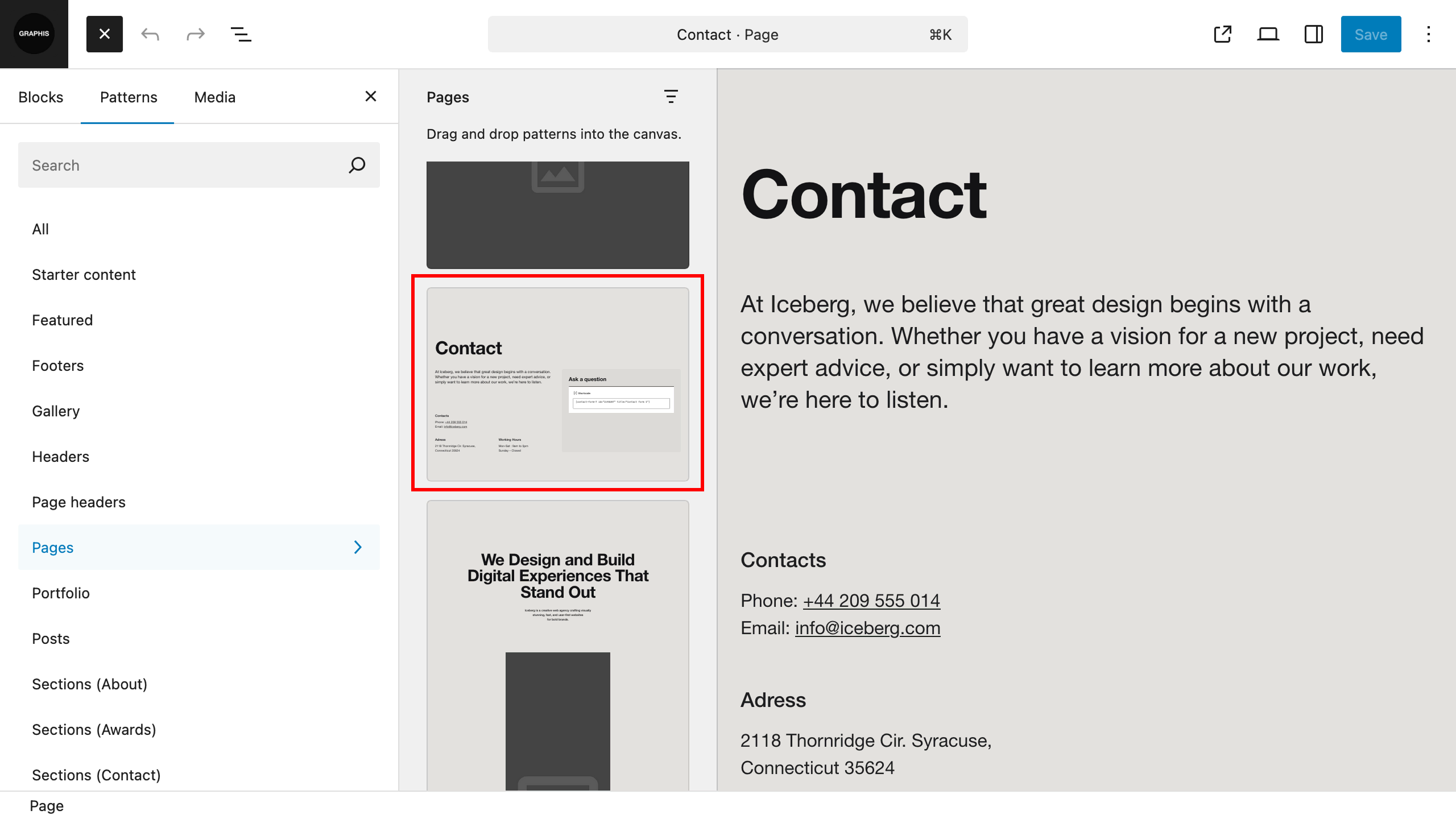
Select blank template for this page and press “Publish” button. Contact form will be displaying on this page.